How-To: Recipes
Before you can add a recipe to a menu, you must first create the recipe within your system. Be sure to use the Yield Factor Method when determining the amounts for each ingredient used in the recipe. Follow these steps to create a recipe:
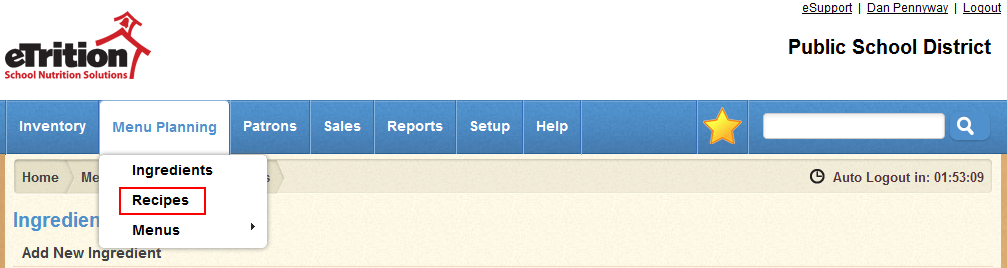
- Navigate to Menu Planning > Recipes.
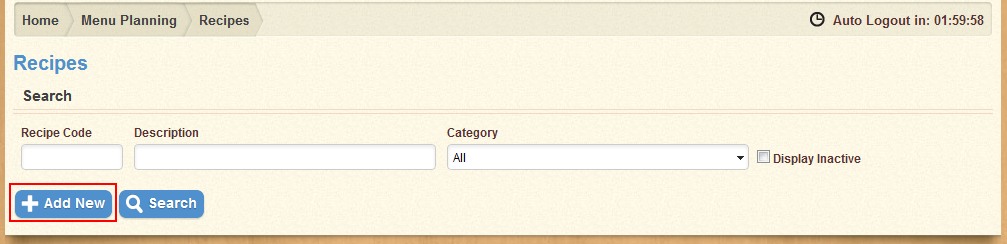
- Click "Add New".
- Fill in the Recipe Code, Description, Menu Description, Servings, and Serving Size fields for the new recipe. Select a recipe category from the Category drop-down menu.

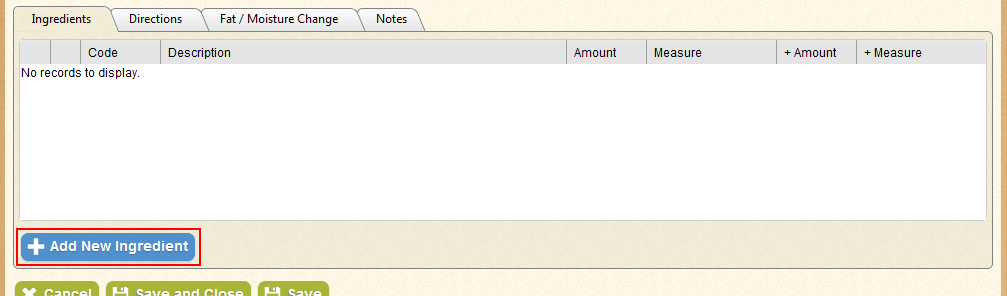
- In the Ingredients tab, click "Add New Ingredient".
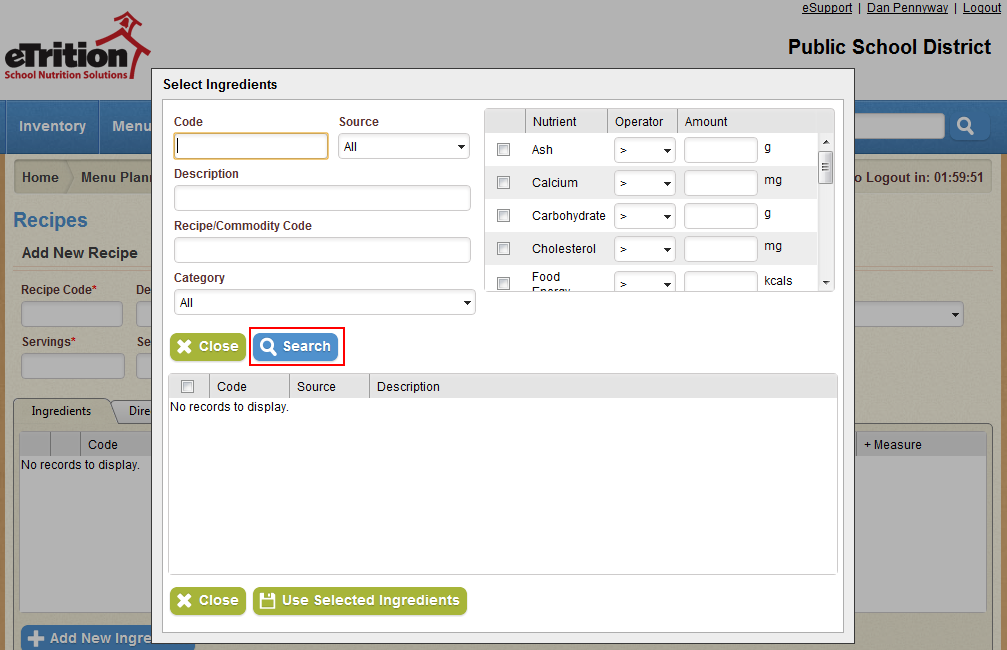
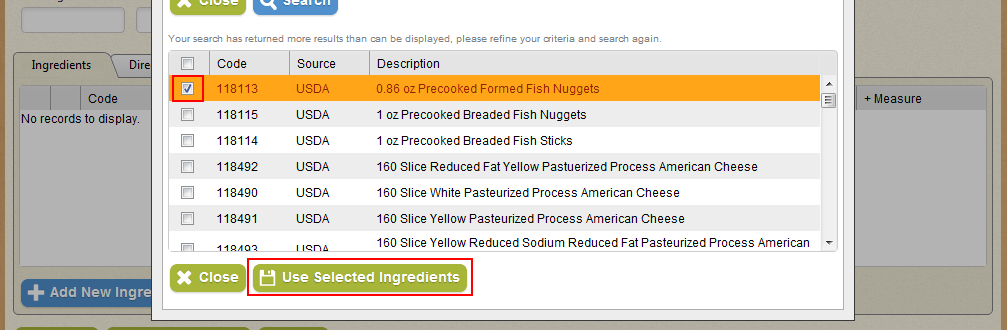
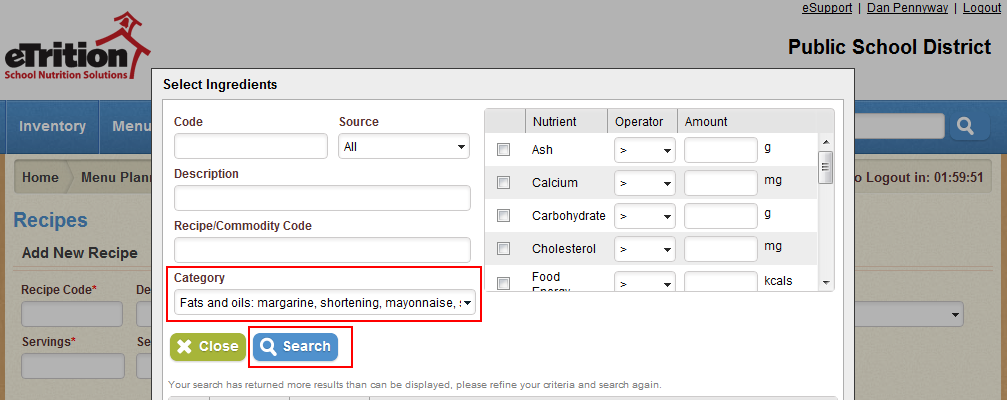
- In the pop-up window that appears, use the search form to locate the desired ingredient, and click "Search".
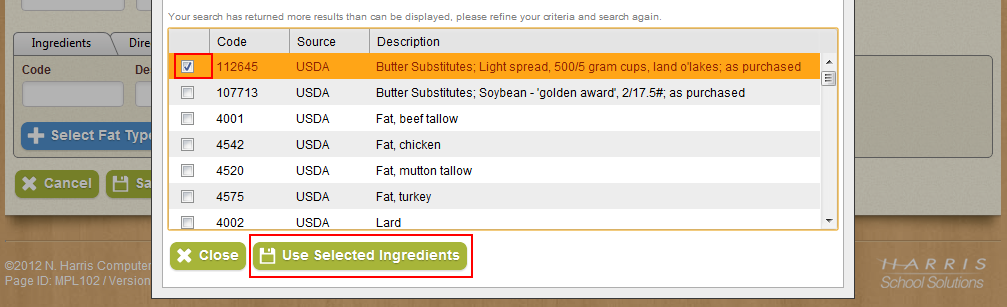
- Use the check-box in the left-hand column to select the desired ingredient or ingredients, and click "Use Selected Ingredients" to add the selected ingredients to the table.
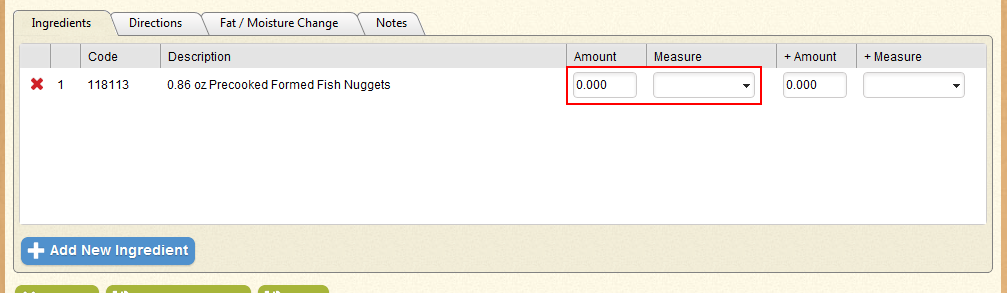
- Enter the desired Amount in the Amount column and select the desired Measure to designate the amount of the selected ingredient that is included in the recipe.
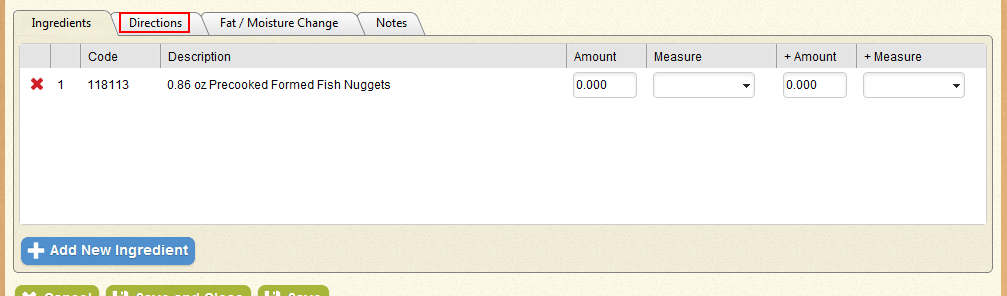
- Select the "Directions" tab.
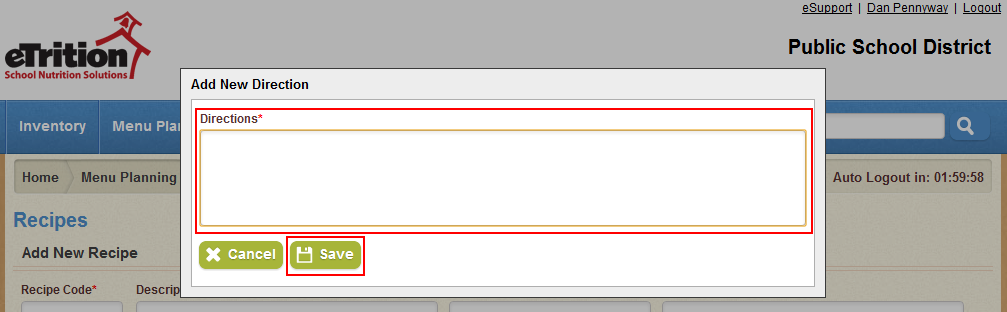
- Click "Add New Direction".

- Enter the instructions for the new direction, and click Save. Repeat as needed for each instruction in the recipe.
- Select "Fat / Moisture Change".
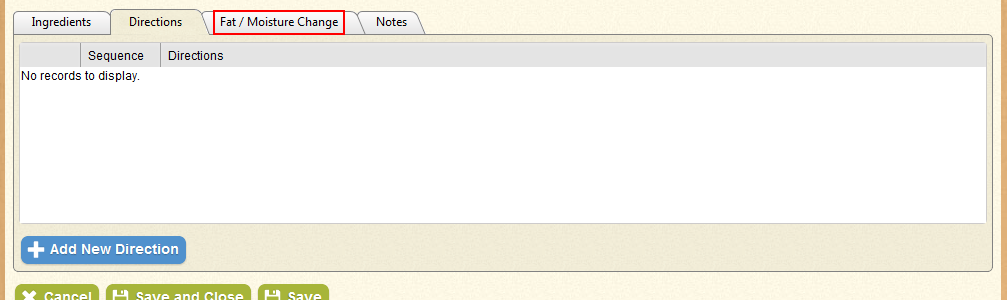
- Click "Select Fat Type".

-
In the pop-up window that appears, use the search form to locate the desired ingredient, and click "Search".
- Use the check-box in the left-hand column to select the desired ingredient or ingredients, and click "Use Selected Ingredients" to add the selected ingredient to the table.
- Enter the appropriate Fat Change % and Moisture Change % in the fields provided.

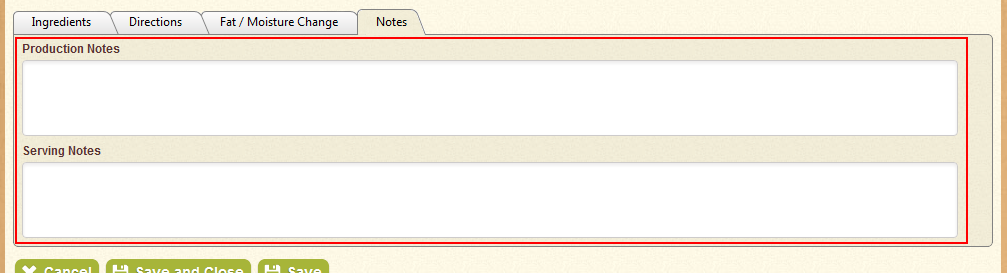
- Select the "Notes" tab.
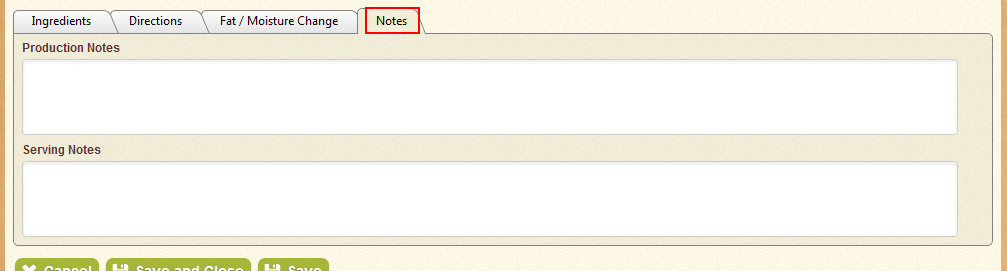
- Provide any desired Production Notes and Serving Notes in the fields provided.
- Click "Save" or "Save and Close".
